Showing posts with label etsy tools. Show all posts

Thursday, April 10, 2014

Thursday Etsy Tips - Creating a Coupon

Did you know that you can create coupon codes for your Etsy shop?

You sure can! Coupon codes are a great way to thank your customers, promote your shop, and appease a customer is a not-so-nice situation. There are many options for coupon codes, and you get to set the amounts. You can create up to 100 coupon codes, so you can create one to suit any need you may have.

To get started go to the drop down menu which appears from the "Your Shop:" link, located from the top right hand corner of most pages.


If you have never made a coupon you will be greeted with an offer to do so.


Click the Create New Coupon button to get started.


One very important thing to remember is that once you make a coupon code, you cannot edit it, and you can not make it again. For this reason, it is advisable not to delete any of your coupons after they have been made, you never know when you want to activate it again.

You can add personality to a code, to help people remember to use it such as the event (boxing day, thank you) and/or the amount offered.

If it as "Thank You Coupon" then you may check the corresponding box to get Etsy working for you in sending out the code automatically to each buyer upon purchase.

The Discount Type can be either free shipping, with the option to have it valid on domestic shipping only, percent discount off the entire subtotal (before shipping or tax), or a fixed discount, or dollar amount off the order.

You can further customize the coupon options by setting a minimum purchase that must be met before a coupon can be applied, encouraging the customer to order more.

The expiration date is just that. When they expire, the codes do not get deleted, but simply get set to "inactive".

Check active or inactive, depending on if you want to code to be available immediately or sometime in the future.

Click "add coupon" and your good to go!


All of your codes will be displayed on the Coupon Codes page. Here you can keep track of how many codes you have, discount type, the date they were created, how many times the code has been used, expiration date and their status.

To change the status of a code, simply click over Active or Inactive and a window will pop up giving you the option to do so.

You now have the ability to pass these savings onto your customers and promote your shop! Some ways to promote your coupon codes are on business cards, blogs, Facebook, Twitter or even in your shop welcome message.

Hope it brings some business your way!

For more Etsy tips see;

Getting Started (Opening a shop)
Setting up Shop (About Page)
Info and Appearance Section
List an Item
Shop Policies 
Shipping Profiles
Shop Selections 
Listings Manager Part 1 Active Listings 
Listings Manager Part 2
Etsy Mini

Andrea Davis resides in Winnipeg. A proud member of WEST for 2 years and the owner of "We Are Bound Together", a shop where 100% of the proceeds go to charities. Check out her shop, or blog.

Thursday, March 27, 2014

Thursday Etsy Tips: Etsy Mini

An Etsy Mini allows you to display a sampling of your shop or favoured items on your own website or blog. It is an easy way to advertise your products. The images are clickable and take the viewer straight to the listings.

To make your own Etsy Mini, click Listings Manager from the drop down menu connected with Your Shop, located in the top right corner of any page.


On the left hand column, locate the Promote section, near the bottom. Click Etsy Mini.


Now you are able to customize how you would like the Etsy Mini to appear.


You can choose to display either items from your shop or items from your favourites. If you are going with items from your shop, you may click the box to show up to 4 featured items first, so you can have control over what is displayed on the top row. Otherwise the order will coincide with the most recent items added to your shop.

The size (thumbnail or gallery) and the number of columns and rows are all personal preference and can be changed depending on what works best for you.

You can play around with these preferences and see a Preview to determine what you like best. Once you are happy with your choice copy the code provided to use on your website or blog.


For more Etsy tips see;

Getting Started (Opening a shop)
Setting up Shop (About Page)
Info and Appearance Section
List an Item
Shop Policies 
Shipping Profiles
Shop Selections 
Listings Manager Part 1 Active Listings 
Listings Manager Part 2

Andrea Davis resides in Winnipeg. A proud member of WEST for 2 years and the owner of "We Are Bound Together", a shop where 100% of the proceeds go to charities. Check out her shop, or blog.

Thursday, February 27, 2014

Thursday Etsy Tips: Listings Manager Part 1 Active Listings

As the name suggests, your Etsy Listings Manager helps you keep tabs on your listings. This includes both active and various forms of inactive listings.


You can find the Listings Manager by hovering over "Your Shop:" which is found in the top right corner of any Etsy page.


The first page that will be visible is the Active listings. Other than stating the obvious, the Active page lets you perform a lot of editing without the need to go through each individual item's page.


When you hover over the item, pencil icons will appear to the right of the information that can be edited right in the listing manager. These include quantities (In Stock), Price, and Shipping Profile. Click the "pencil" to edit and then the check to save.


You can also bulk edit by checking the corresponding box to the listings you want to edit.


Bulk editing can be applied to "Renew," "Deactivate," or "Delete" multiple listings, or to apply Shipping Profiles or Listing Variations. 

Editing Shipping Profiles will appear in a pop up window specific to the items selected. To edit multiple listings with multiple profiles, see our Etsy Tips: Shipping Profiles.


Editing the Listing Variations will bring you to a new screen. Here you can add the items selected to a different category. (If you've found a certain category more appropriate for your items.) Or you can add Variations to certain items. (For example if I started offering lined pages of the same books and wanted to have both blank and lined in the same listing).


You have the option of applying the above changes to either all your active listings or all listings in a certain Shop Selection (even if you hadn't selected each of the items) or only to the listings you originally selected.


From the Active Listings tab, you can also view when each of your listings will expire. You can click the Expires link to sort your listing by date. Select the items you with to renew and click renew. You will then be asked clarify if you indeed do want to renew, or you can cancel. Each renewal is $0.20, just as when the item was first listed.


If you do not renew before the listing expires - that's okay! Expired listings will not be deleted, they will simply be removed to the Expired tab.

More on that next time! Tune in later for Thursday Etsy Tips: Listings Manager Part 2

For more Etsy tips see;

Getting Started (Opening a shop)
Setting up Shop (About Page)
Info and Appearance Section
List an Item
Shop Policies 
Shipping Profiles
Shop Selections 

Andrea Davis resides in Winnipeg. A proud member of WEST for 2 years and the owner of "We Are Bound Together", a shop where 100% of the proceeds go to charities. Check out her shop, or blog.

Thursday, January 23, 2014

Thursday Etsy Tips: Shipping Profiles

Etsy has created Shipping Profiles to save you time when applying shipping costs to your listings. You can create a new Shipping Profile for each price point. Once the profile is complete, it can be added to or removed from a single, or multiple listing from the Shipping Profile page, without having to go into each and every listing to update the shipping costs.

Create a Shipping Profile

You find your Shipping Profiles by going to the Info and Appearance Section.


In the menu on the left hand side of the page you will see a link for Shipping Profiles, located under the Listings heading.


This will bring you to the page where you can see and manage all of your profiles. From here you can click "edit" to make changes to an existing profile or create new profile.


Click the "Create New Profile" button to go to the next screen and fill in the appropriate information.


For Profile Name I like to use a description of the items I attach the particular profile to. For example my regular journals are one price point, shipping wise, so I just use the profile name of "journal" while my "small journals" have a different shipping cost and their own profile. You can name your profiles anything you like, as long as you know what they are, no one else will see the profile name but you.

Processing Time refers to how long it will take you, the seller, to get the item in the mail. It is not the shipping time. You may want to include shipping time estimates in your Policies section.

Ships From refers to the country that you are in, where the package will be coming from.

As a default, you will ship to your own country. Fill in your shipping information with the help of the mail service provider in your country (eg. CanadaPost). You may also ship to other countries if it is your preference. This is highly recommended as you will greatly increase your customer base this way. (You really want to ship the the US if you are a Canadian.)

As an option, you may also join the "Shipping Upgrades and Shipping Profile Improvements" team to get the add shipping upgrades option you see in the bottom left corner in the above image.


The Shipping Upgrades are great for offering faster shipping times, (XpressPost, Expedited) or for us Canadians, shipment tracking upgrades as this does cost more.

Click "Create Shipping Profile" and your ready for the next step!


Link Shipping Profile to Listings

Having shipping profiles are only useful if they are applied to listings. You may apply a shipping profile to as many listings as you need. To do this go to your Listings Manager, found by hovering over Your Shop: in the top right corner of any page.


This will bring up a list of all your listed items.


The heading marked Shipping indicates which shipping profile is applied to the corresponding item. As you can see in the above image, I have three different shipping profiles applied to the journals.

To add or edit which shipping profile is applied, click the "pencil" to the right of the shipping profile name (red arrow in above image). Simply click on whichever profile you would like to add and it is updated automatically, no need to "save".


As you can see this is an excellent time saving tool, especially around this time of year when shipping prices change.

For more Etsy tips see;

Getting Started (Opening a shop)
Setting up Shop (About Page)
Info and Appearance Section
List an Item
Shop Policies 

Andrea Davis resides in Winnipeg. A proud member of WEST for 2 years and the owner of "We Are Bound Together", a shop where 100% of the proceeds go to charities. Check out her shop, or blog.

Friday, July 22, 2011

Tools for Etsy Shop Promotion

'Verde Vida' by NancyBloklandPottery

All things green and living or life giving....


Ivy Loves Summer Pe...

$7.50

Splashed Away - 24 ...

$149.00

Green Face Pitcher

$75.00

ECOGRO Primitive Te...

$250.00

SALE was 185 USD Fe...

$115.00

Dragonfly, a 6x6 ra...

$68.00

Natural Turguoise a...

$93.50

CUSTOM for you - co...

$32.00

Organic Dinosaur Ka...

$3.50

Best Seller-Tessie ...

$139.00

Cabbage Patch Rabbi...

$24.00

Large USA Pottery t...

$46.00

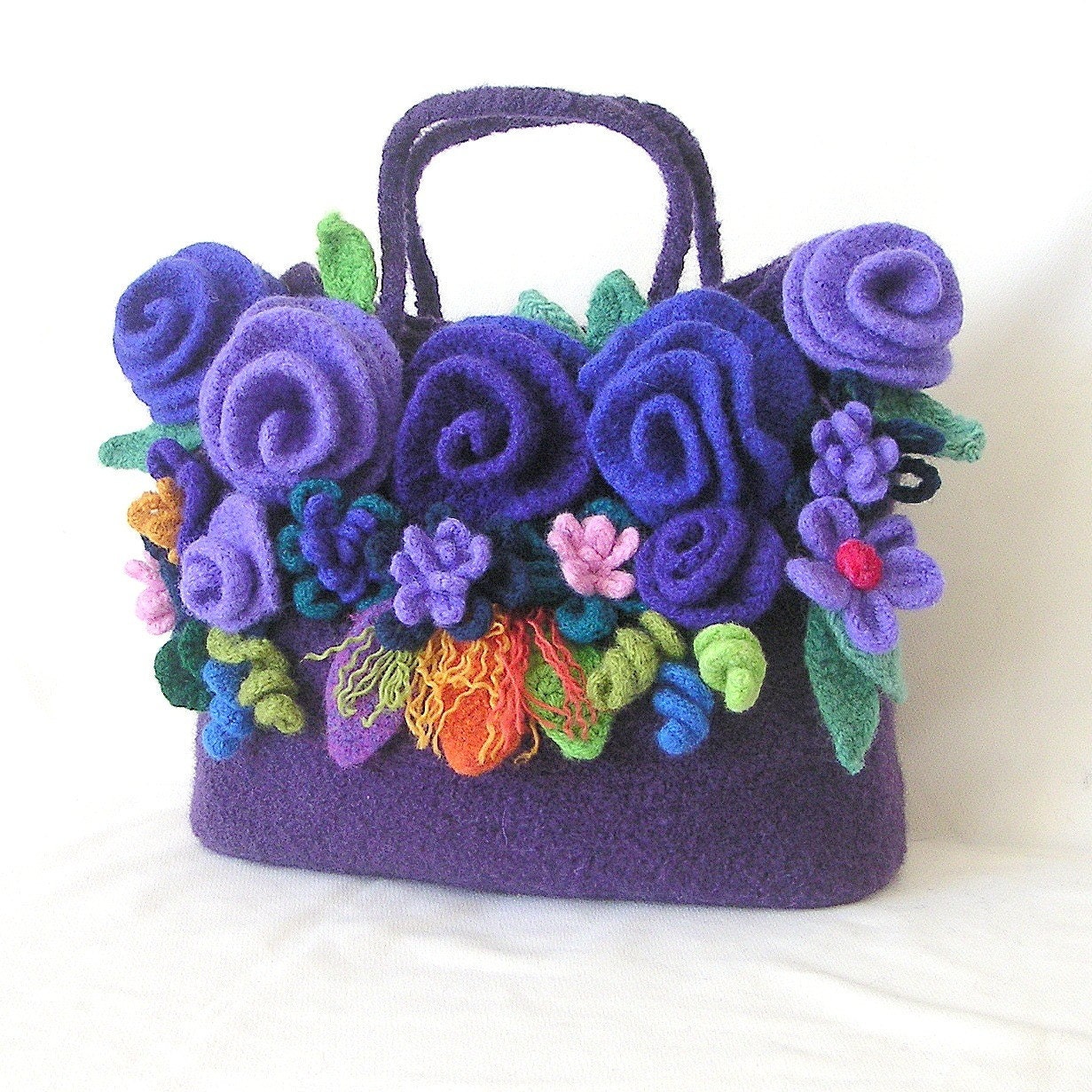
Felted Flowers Tote...

$29.99

Aqua Paper Bowl

$18.00

Treasury tool by Red Row Studio.

When you've been fortunate enough to be included in a treasury it's fun to blog about it!
Using Etsy treasury HTML code generator allows you to not only do a sized screen capture as the tool lets you select how many columns of items to display, BUT it also allows the viewer of said lovely treasury to direct click through to each item! slick yes? And as an added bonus there are 3 sizes to choose from. Definitely one of my favorite promo tools!

Lovely treasury Nancy!


Google Analytics
is where I go to monitor view activity on my Etsy shop. With it you can check out how many repeat visitors you get to your shop or blog, how long they stay and where they came from. Definitely useful information and worth the bit of time it takes to set it up. Not a direct promotional tool, but useful to see how your efforts in other promotional areas are going.

You need to drive eyes to your Etsy shop as eyes = sales. Yes, many are tire kickers but the more folks you have looking the better your chances are for more sales.

Another great way to get more eyes on your Etsy shop is to optimize your searchability or commonly called SEO (search engine optimization).
This means being aware of where Google, Yahoo, Bing or similar tools will look into your shop when a living breathing human being enters a search into their browser.
Take the time to read and use this Etsy help article. Pay close attention to the section that takes about the two important SEO elements for your Etsy shop pages, which are your Shop Title and Shop Announcement.


Now is the time to work on setting up Google Analytics and SEO for your Etsy shop so you are ready for the busy fall shopping season!

Team members can go to the team forum for a team only discussion on this topic.